10 May, 2010

SQL Query to find out who attended office on Saturday

SQL Query to find out who attended office on Saturday:
A client of mine had a report requirement to find out the employees who attended office on Saturday in the last 30 days and their Check-In Check-Out times.
Here is some sample data that does that. For convenience, I have not added the CheckOut time, but hopefully you will get the idea
SAMPLE Data
DECLARE @TT TABLE (EID int, CheckIn DATETIME)
INSERT INTO @TT VALUES (2, 'April 02, 2010 11:25am')
INSERT INTO @TT VALUES (4, 'April 03, 2010 9:55am')
INSERT INTO @TT VALUES (5, 'April 07, 2010 11:24am')
INSERT INTO @TT VALUES (2, 'April 10, 2010 11:22am')
INSERT INTO @TT VALUES (3, 'April 15, 2010 5:27am')
INSERT INTO @TT VALUES (6, 'April 16, 2010 8:21am')
INSERT INTO @TT VALUES (7, 'April 17, 2010 11:55am')
INSERT INTO @TT VALUES (3, 'April 22, 2010 10:16am')
INSERT INTO @TT VALUES (4, 'April 24, 2010 11:35am')
INSERT INTO @TT VALUES (7, 'April 30, 2010 9:49pm')
INSERT INTO @TT VALUES (2, 'May 01, 2010 9:49am')
INSERT INTO @TT VALUES (5, 'May 02, 2010 10:43am')
INSERT INTO @TT VALUES (3, 'May 03, 2010 11:29am')
QUERY
SELECT * FROM @TT
WHERE DATENAME(weekday, CheckIn) = 'SATURDAY'
AND DATEDIFF(DD, CheckIn, GETDATE()) < 30
OUTPUT
Find Saturday
Hopefully these people get the bonus they deserve!

04 May, 2010

Returning Identity Value in SQL Server: @@IDENTITY Vs SCOPE_IDENTITY Vs IDENT_CURRENT


http://weblogs.asp.net/arefin/archive/2010/05/04/returning-identity-value-in-sql-server-identity-vs-scope-identity-vs-ident-current.aspx
:
" We have some common misconceptions on returning the last inserted identity value
from tables. To return the last inserted identity value we have options to use @@IDENTITY
or SCOPE_IDENTITY or IDENT_CURRENT function depending on the requirement but it
will be a real mess if anybody uses anyone of these functions without knowing exact
purpose. So here I want to share my thoughts on this. @@IDENTITY, SCOPE_IDENTITY
and IDENT_CURRENT are almost similar functions in terms of returning identity value.
They all return values that are inserted into an identity column. Earlier in SQL
Server 7 we used to use @@IDENTITY to return the last inserted identity value because
those days we don’t have functions like SCOPE_IDENTITY or IDENT_CURRENT but now
we have these three functions. So let’s check out which one responsible for what.
IDENT_CURRENT returns the last inserted identity value in a particular table. It
never depends on a connection or the scope of the insert statement. IDENT_CURRENT
function takes a table name as parameter. Here is the syntax to get the last inserted
identity value in a particular table using IDENT_CURRENT function.
SELECT IDENT_CURRENT('Employee')
Both the @@IDENTITY and SCOPE_IDENTITY return the last inserted identity value created
in any table in the current session. But there is little difference between these
two i.e. SCOPE_IDENTITY returns value inserted only within the current scope whereas
@@IDENTITY is not limited to any particular scope. Here are the syntaxes to get
the last inserted identity value using these functions
SELECT @@IDENTITY
SELECT SCOPE_IDENTITY()
Now let’s have a look at the following example. Suppose I have two tables called
Employee and EmployeeLog.
CREATE TABLE Employee
(
EmpId NUMERIC(18, 0) IDENTITY(1,1) NOT NULL,
EmpName VARCHAR(100) NOT NULL,
EmpSal FLOAT NOT NULL,
DateOfJoining DATETIME NOT NULL DEFAULT(GETDATE())
)

CREATE TABLE EmployeeLog
(
EmpId NUMERIC(18, 0) IDENTITY(1,1) NOT NULL,
EmpName VARCHAR(100) NOT NULL,
EmpSal FLOAT NOT NULL,
DateOfJoining DATETIME NOT NULL DEFAULT(GETDATE())
)
I have an insert trigger defined on the table Employee which inserts a new record
in the EmployeeLog whenever a record insert in the Employee table. So Suppose I
insert a new record in the Employee table using following statement:
INSERT INTO Employee (EmpName,EmpSal) VALUES ('Arefin','1')
The trigger will be fired automatically and insert a record in EmployeeLog. Here
the scope of the insert statement and the trigger are different. In this situation
if I retrieve last inserted identity value using @@IDENTITY, it will simply return
the identity value from the EmployeeLog because it’s not limited to a particular
scope. Now if I want to get the Employee table’s identity value then I need to use
SCOPE_IDENTITY in this scenario. So the moral is always use SCOPE_IDENTITY to return
the identity value of a recently created record in a sql statement or stored procedure.
It’s safe and ensures bug free code.

Visual Studio 2010 Extension Manager (and the new VS 2010 PowerCommands Extension)

Visual Studio 2010 Extension Manager (and the new VS 2010 PowerCommands Extension): "

Extensibility in VS 2010

VS 2010 provides a much richer extensibility model than previous releases. Anyone can build extensions that add, customize, and light-up the Visual Studio 2010 IDE, Code Editors, Project System and associated Designers.
VS 2010 Extensions can be created using the new MEF (Managed Extensibility Framework) which is built-into .NET 4. You can learn more about how to create VS 2010 extensions from this this blog post from the Visual Studio Team Blog.

VS 2010 Extension Manager

Developers building extensions can distribute them on their own (via their own web-sites or by selling them).
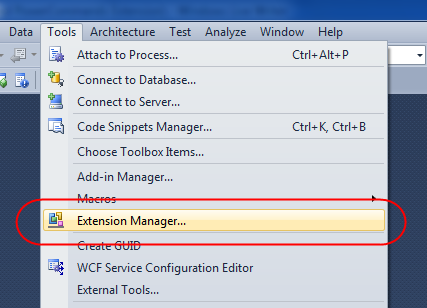
Visual Studio 2010 also now includes a built-in “Extension Manager” within the IDE that makes it much easier for developers to find, download, and enable extensions online. You can launch the “Extension Manager” by selecting the Tools->Extension Manager menu option:
image
This loads an “Extension Manager” dialog which accesses an “online gallery” at Microsoft, and then populates a list of available extensions that you can optionally download and enable within your copy of Visual Studio:
image
There are already hundreds of cool extensions populated within the online gallery. You can browse them by category (use the tree-view on the top-left to filter them). Clicking “download” on any of the extensions will download, install, and enable it.

PowerCommands for Visual Studio 2010

This weekend Microsoft released the free PowerCommands for Visual Studio 2010 extension to the online gallery. You can learn more about it here, and download and install it via the “Extension Manager” above (search for PowerCommands to find it).
The PowerCommands download adds dozens of useful commands to Visual Studio 2010. Below is a screen-shot of just a few of the useful commands that it adds to the Solution Explorer context menus:
image
Below is a list of all the commands included with this weekend’s PowerCommands for Visual Studio 2010 release:

  • Enable/Disable PowerCommands in Options dialog
    This feature allows you to select which commands to enable in the Visual Studio IDE. Point to the Tools menu, then click Options. Expand the PowerCommands options, then click Commands. Check the commands you would like to enable.
    Note: All power commands are initially defaulted Enabled.
  • Format document on save / Remove and Sort Usings on save
    The Format document on save option formats the tabs, spaces, and so on of the document being saved. It is equivalent to pointing to the Edit menu, clicking Advanced, and then clicking Format Document. The Remove and sort usings option removes unused using statements and sorts the remaining using statements in the document being saved.
    Note: The Remove and sort usings option is only available for C# documents. Format document on save and Remove and sort usings both are initially defaulted OFF.
  • Clear All Panes
    This command clears all output panes. It can be executed from the button on the toolbar of the Output window.
  • Copy Path
    This command copies the full path of the currently selected item to the clipboard. It can be executed by right-clicking one of these nodes in the Solution Explorer:
    The solution node; A project node; Any project item node; Any folder.
  • Email CodeSnippet
    To email the lines of text you select in the code editor, right-click anywhere in the editor and then click Email CodeSnippet.
  • Insert Guid Attribute
    This command adds a Guid attribute to a selected class. From the code editor, right-click anywhere within the class definition, then click Insert Guid Attribute.
  • Show All Files
    This command shows the hidden files in all projects displayed in the Solution Explorer when the solution node is selected. It enhances the Show All Files button, which normally shows only the hidden files in the selected project node.
  • Undo Close
    This command reopens a closed document , returning the cursor to its last position. To reopen the most recently closed document, point to the Edit menu, then click Undo Close. Alternately, you can use the CtrlShiftZ shortcut.
    To reopen any other recently closed document, point to the View menu, click Other Windows, and then click Undo Close Window. The Undo Close window appears, typically next to the Output window. Double-click any document in the list to reopen it.
  • Collapse Projects
    This command collapses a project or projects in the Solution Explorer starting from the root selected node. Collapsing a project can increase the readability of the solution. This command can be executed from three different places: solution, solution folders and project nodes respectively.
  • Copy Class
    This command copies a selected class entire content to the clipboard, renaming the class. This command is normally followed by a Paste Class command, which renames the class to avoid a compilation error. It can be executed from a single project item or a project item with dependent sub items.
  • Paste Class
    This command pastes a class entire content from the clipboard, renaming the class to avoid a compilation error. This command is normally preceded by a Copy Class command. It can be executed from a project or folder node.
  • Copy References
    This command copies a reference or set of references to the clipboard. It can be executed from the references node, a single reference node or set of reference nodes.
  • Paste References
    This command pastes a reference or set of references from the clipboard. It can be executed from different places depending on the type of project. For CSharp projects it can be executed from the references node. For Visual Basic and Website projects it can be executed from the project node.
  • Copy As Project Reference
    This command copies a project as a project reference to the clipboard. It can be executed from a project node.
  • Edit Project File
    This command opens the MSBuild project file for a selected project inside Visual Studio. It combines the existing Unload Project and Edit Project commands.
  • Open Containing Folder
    This command opens a Windows Explorer window pointing to the physical path of a selected item. It can be executed from a project item node
  • Open Command Prompt
    This command opens a Visual Studio command prompt pointing to the physical path of a selected item. It can be executed from four different places: solution, project, folder and project item nodes respectively.
  • Unload Projects
    This command unloads all projects in a solution. This can be useful in MSBuild scenarios when multiple projects are being edited. This command can be executed from the solution node.
  • Reload Projects
    This command reloads all unloaded projects in a solution. It can be executed from the solution node.
  • Remove and Sort Usings
    This command removes and sort using statements for all classes given a project. It is useful, for example, in removing or organizing the using statements generated by a wizard. This command can be executed from a solution node or a single project node.
  • Extract Constant
    This command creates a constant definition statement for a selected text. Extracting a constant effectively names a literal value, which can improve readability. This command can be executed from the code editor by right-clicking selected text.
  • Clear Recent File List
    This command clears the Visual Studio recent file list. The Clear Recent File List command brings up a Clear File dialog which allows any or all recent files to be selected.
  • Clear Recent Project List
    This command clears the Visual Studio recent project list. The Clear Recent Project List command brings up a Clear File dialog which allows any or all recent projects to be selected.
  • Transform Templates
    This command executes a custom tool with associated text templates items. It can be executed from a DSL project node or a DSL folder node.
  • Close All
    This command closes all documents. It can be executed from a document tab.

How to temporarily disable extensions

Extensions provide a great way to make Visual Studio even more powerful, and can help improve your overall productivity. One thing to keep in mind, though, is that extensions run within the Visual Studio process (DevEnv.exe) and so a bug within an extension can impact both the stability and performance of Visual Studio.
If you ever run into a situation where things seem slower than they should, or if you crash repeatedly, please temporarily disable any installed extensions and see if that fixes the problem. You can do this for extensions that were installed via the online gallery by re-running the extension manager (using the Tools->Extension Manager menu option) and by selecting the “Installed Extensions” node on the top-left of the dialog – and then by clicking “Disable” on any of the extensions within your installed list:
image